레이블이 SCOM인 게시물을 표시합니다. 모든 게시물 표시

2011년 6월 10일 금요일

SCOM: How to monitoring Linux script file - part 2

As follow-up of the post about how to monitoring linux script file, I'll explain that creating configurable monitor type and recovery type which mean reusable by many similar monitors.


The previous post, It wasn't able to reuse the monitor type, because I wrote a certain command and file path in Module types (Monitor type and write action).


Looking at Module type, each module has "configuration schema" tab. MP authors can define configuration values in configuration schema tab to pass the values to the later step.

Figure 1. Configuration schema tab.


This time, I assume that I'd like to make one monitor type and to create some monitors which monitoring different script files. Changeable properties are related to the script, in other words, a script command and file path for SFTP.


Step 1. Add configuration for Monitor type.
As first step, I added a configuration named "ShellCommand". 

Figure 2. Configuration schema tab of the Monitor type


Go to Member Module tab and click Edit button.

Figure 3. Member modules tab of the Monitor type


In the ShellCommand field, type "$Config/ShellCommand$". this value is then added value in Configuration Schema tab.

Figure 4. Configuration window of Member modules tab

Step 2. Add configuration for Recovery Action.
The second step, it is similar to the first step, is modifying recovery action.
I add two configurations, "Source" is the field which contains full path of the source file on Windows and "Target" is the full path of target on Linux.

Figure 5. Configuration schema tab of the Recovery action


Then, I mapped above two values to correspond fields.

Figure 6. Configuration window of the Recovery action

Step 3. Create a monitor.
After earlier two steps, I was creating a monitor from the monitor type.

Figure 7. Create a Monitor

Go to the configuration tab.
I have to set the shell command that I want to execute.

Figure 8. Configuration tab of the Monitor


This is the point which is different from previous post. As I put the new command whenever I define a new monitor, I can easily create the different monitor from the same monitor type.


Go to the Diagnose and Recovery tab. and I added a Recovery action.
Click Edit button.

Figure 9. Action pane of the Diagnose and Recovery window

Put the right paths for those field.

Figure 10. Configuration for recovery action

2011년 6월 9일 목요일

SCOM: Does Linux need to join in AD?

Windows computers must join in active directory to be managed by SCOM. So, what if Linux computer? Do administrators have to make Linux join in AD before SCOM agent installation on each computer?


At first, I had manual procedures of AD joining for Linux computers, setting time synchronizationauthentication configuration and modify samba service. After complete these configurations, it just worked. In other words, the discovery wizard of SCOM found those machine well. 


I tried to do this another way. I made up it without AD joining.
I created a VM running CentOS. I was setting hostname("centomtest") and a static internal IP("10.1.1.121"). after that, I tried to discovered this VM via the Wizard. But it failed.

Figure 1. Discovery wizard: Fail to resolve machine


And I manually registered the static IP address to DNS server. AD and DNS were combined in one server. I only registered it only the DNS server not AD.

Figure 2. Add a new host in DNS server.


This time, It worked from the discovery wizard.

Figure 3. Discovery wizard: Linux server was found successfully 

As a result, Linux computers don't need AD joining. They just need to be registered in DNS server.

However, what would happen if the IP address change?
SCOM will produce an error. It would be about Heart failure.
Administrator manually needs to change the record in DNS server.

Figure 4. When IP address of the Linux server is changed , SCOM shows an error. It fails to communicate to the server.

2011년 5월 31일 화요일

SCOM: Invoke command via WinRM

After SCOM agent installation, It opens the way to communicate to Linux server directly. SCOM agent use WinRM to interact between management server and managed hosts.


Using WinRM, it is able to invoke command or get information. I write two examples. The first is executing a script on Linux and the other is getting performance information on the same server.


Command 1 : Execute command
c:\>winrm invoke ExecuteShellCommand http://schemas.microsoft.com/wbem/wscim/1/cim-schema/2/SCX_OperatingSystem?__cimnamespace=root/scx  -r:https://[server name]:1270/wsman -u:[user id] -p:[password] -auth:basic -skipcacheck -encoding:utf-8 -skiprevocationcheck -file:c:\file.xml

file.xml: 


Command 2 : Getting information
PS C:\> winrm enumerate http://schemas.microsoft.com/wbem/wscim/1/cim-schema/2/SCX_ProcessorStatisticalInformation?__cimnamespace=root/scx   -r:https://[server name]:1270/wsman -u:[user id] -p:[password] -auth:basic -skipcacheck -encoding:utf-8 -skiprevocationcheck


Please refer to this site for more information about Microsoft Cross-Platform Providers (XPlatProviders): http://scx.codeplex.com/wikipage?title=xplatproviders

2011년 5월 28일 토요일

SCOM: How to monitoring Linux script file

I authored MP (Management Pack) to get performance data about network usage on Linux servers. That was a way that I wrote a script file and make the rule to execute that script on every certain minutes.


This time, I had a plan to add a feature of automatic copying the script to Linux machines when needed, regardless of manual works.
My intention were follows:
1) Check the existence the script.
2) If not, Copy the script to desired location.
3) After copy, It gives privilege to the script.


My intention was to checking if the file was existed. I thought I would make the rule for the first time, but I changed to make a monitor. It should be a monitor because this has feature to check something periodically. The second one was that I found that It enabled to transfer file via SFTP (SSH File Transfer Protocol). The first and third, they were able to invoke through WSMan. In addition, If file was already been there, the second and third were ignored.


Of course, I had to set some properties to achieve this goal throughout MP.
I used SCOM Authoring console. 


First step, Make a data source for Monitor type
I made an user-defined data source: A scheduler and an Invoke were added to the data source named 
CloudPortal.Linux.Monitoring.DataSource.ShellCommand.Monitoring. This will be going to be used to define a Monitor type.


Second step, Make a monitor Type 
Create a monitor type. Go to Type Library -> Monitor Type -> New.


Define Monitor state. In my case, I intended that I was mapping success ID to find the script, on the other hand, was mapping warning ID when it didn't find.


Define at least one more member modules. I defined three modules. First module, DS(Data source), was to invoke Linux command. And the rests are Condition Detections, Found was for when script file would be found and NotFound was for when file didn't find.


In terms of DS, this came from a type name CloudPortal.Linux.Monitoring.DataSource.ShellCommand.Monitoring. 

Let's look at DS module closely, Linux command that I'd like to invoke is
ls /MGR/network_usage.py | wc -l

This returns 1 when it finds "network_usage.py" and 0 when it doesn't.


And then this capture is Find module, set 1 as its value which means the script file exists. The way to get the output of DS execution is through  //*[local-name()="StdOut"]

On the contrary, the value set as 0 in NotFound module.

The next was mapping states to the modules. Previously, I defined two states (Success and Warning). Here, One or more specific modules have to belong to a specific state and the order.

In the case of Success, it included DS and Found, Found was followed by DS.


Third step, Make a unit monitor
Once the monitor type has successfully been made, It only remains to define unit monitor.
Go to Health monitor -> Monitors -> New.

It doesn't need to make a class in advance to create monitor ( There is example of creating a class for its monitor on the first reference site), just needed to define target.
I defined Microsoft.Linux.Computer as target and System.Health.AvailabilityState as parent monitor.


Then, clicked "Browser for a type" in Configuration tab and chose the monitor type that I defined earlier.


The last, defined recovery tasks in diagnostic and recovery tab.

I created three tasks when health status appear warning.
As knowing easily the meaning from their names, these are about making directory (/MGR), copying file and give privilege to the file.


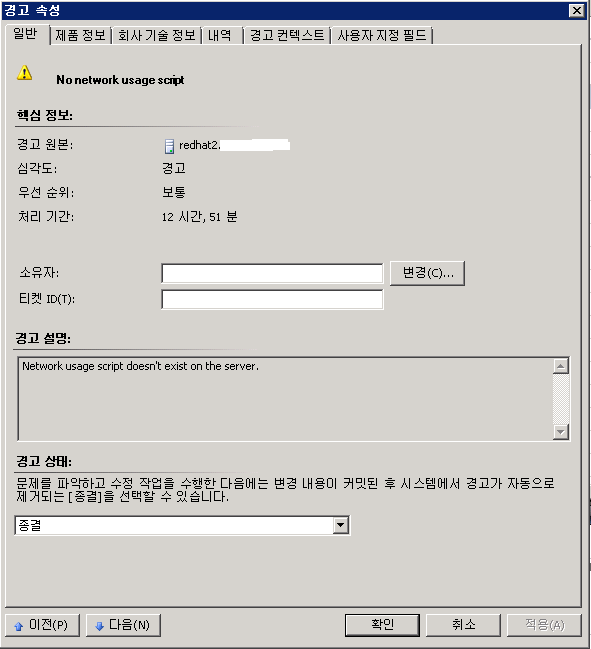
After upload this MP to SCOM console, I removed folder for the purpose of test on a Linux Machine. The waning was produced well as the below picture and recovery tasks as well.

----------------------------------------------------------------


Changed the recovery setting, updated on 01 of June

In addition to this, I created three recovery tasks at first as you can see the above picture, and got an issue to address. This monitor didn't guarantee the order of these tasks. In order words, I intended to start from MakeDir to FilePrevilege, but there were not started as this order. 

So, I tried to create a Write action this time. 
Go Type library-> Module types -> Write actions.
The advantage of using this, I was able to make them in good order: I can set next module.

When I added to recovery, It was appeared from the list.

This was the final version of my unit monitor. The different from the previous was that the number of tasks decreased to only one.

----------------------------------------------------------------

About File transfer, updated on 03 of June


This is information of my write action called SFTP.


Let's only focus on file transfer among three steps (Invoke, SFTP and Invoke2).
After you add a write action named Microsoft.Unix.SFTPTransfer.WriteAction, you need to fill its properties of Host, UserName, Password, SourceFile, TargetFile. The point is that the file is transfered from Windows to Linux via SFTP.


I think that values of Host, Username and password are the the same with the above image.
- Host: $Target/Property[Type="Unix!Microsoft.Unix.Computer"]/PrincipalName$
- UserName: $RunAs[Name="Unix!Microsoft.Unix.ActionAccount"]/UserName$
- Password: $RunAs[Name="Unix!Microsoft.Unix.ActionAccount"]/Password$ 


However, Sourcefile and Targetfile may be difference with your cases.
SourceFile should be a file located in SCOM management server. 


In my case, I created a folder named LinuxScripts on C: drive on SCOM management server and then I located my file(network_usage.py) into the folder. And the last property, TargetFile is the linux directory which you want to copy to.


-----------------------------------------------------------------------------------------------------------

Reference sites: 
1. This is second to none site, this is good guide about authoring MP: http://operatingquadrant.com/2011/03/23/operations-manager-extending-unixlinux-monitoring-with-mp-authoring-part-i/

2. The contents of this site includes lots of XML tags, but it gives you analytical way of which part of your MP is wrong when the monitor doesn't work: http://technet.microsoft.com/en-us/library/dd789006.aspx

2011년 5월 6일 금요일

How to Install CentOS agent on SCOM

Yesterday, I posted a blog about how to import CentOS MP. As a follow-up of the blog, I'm going to tell you about installing agent for CentOS.


Make agent install needs some of manual works. 


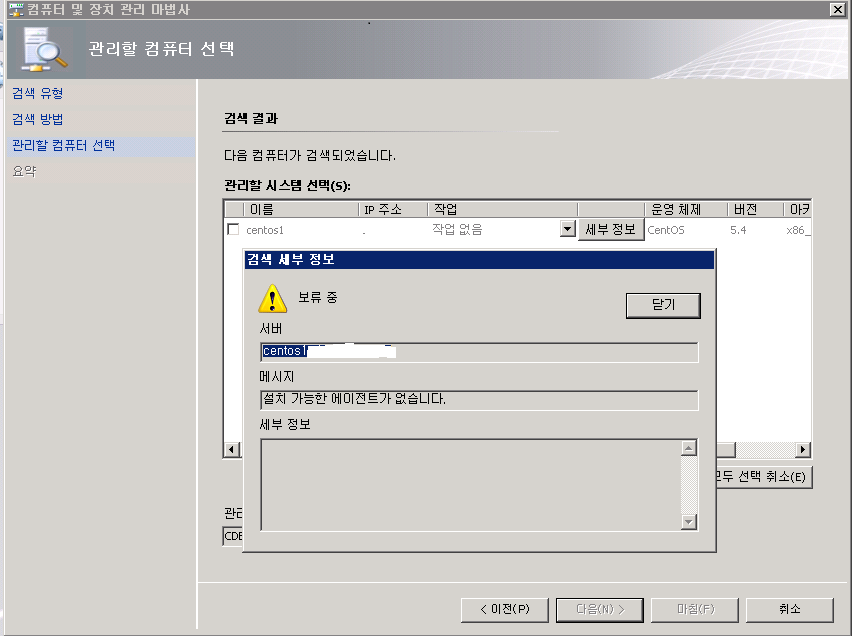
After import MP, then next step is installing agent that makes it possible for monitoring by SCOM. If you try to add computer to manager from the Console, you encounter the following error. (It cannot go to the next step)


The error message is "there is no agent to install."  This message is natural, SCOM doesn't have any CentOS agent. You only see existing other agent files.


So, What am I going to have to do with no agent? but, there is a workaround.
Both architectures of CentOS and Redhat are very similar. They are the twins come from the same kernel. Let's copy it from redhat agent and rename it like the below. I renamed it as "scx-1.0.4-265.centos.5.x86_64.rpm"


And the next step is modifying MP file named Microsoft.Linux.CentOS.5.xml. 
The point is to make the same version between file name and the xml. 
The first version number in agent's name,1.0.4, should be matched "version" element in the MP. And the second number, 265, should be matched "Build" element.


After finish modifying the mp file, you have to import it again to SCOM. Compare to the first figure, it is able to go the next step. 


Agent is installed successfully.


To verify, I queried the information of the linux server, then communication worked fine.


2011년 5월 5일 목요일

How to import CentOS MP

So far, CentOS MP cannot directly download from the catalog manager of SCOM, but it is possible to download and import to SCOM in another way. I'm going to explain that how to download, modify, seal and import these CentOS MPs. 


1. Download CentOS MPs from here. They're not sealed but xml types. There are five files after upzip. We need only two file which contain "centos" in their names. 

Cenos-library (short for "Microsoft.Linux.CentOS.Library.xml") should be the first to import because Cenos-5 (short for "Microsoft.Linux.CentOS.5.xml") has dependency of the Cenos-library. 


I tried to import these xml typed MP files to SCOM console, but they were failed. (Centos-library imported well but Centos-5 had problem.)


this error was that it couldn't find dependency about this pack. I changed my mind that I made sealed MPs. I intended that I could find the way easier to solve the dependency problem. A benefit of this is that I can get specific error messages during sealing, for example, knowing easily whether some dependent MP is wrong or not - it could have wrong version or wrong publicKeyToken


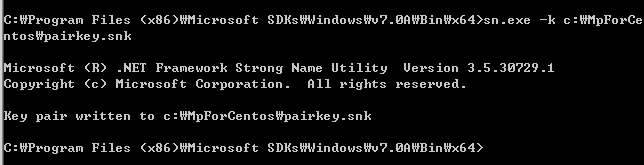
2. Make KeyFile for the MP.
c:\>sn -k c:\MpForCentos\pairkey.snk
I made a folder named "MpForCentos" and copied mp files, then made keyfile into this folder.

3. Seal MPs
I ran the command prompt program and typed commands for sealing Centos-library like below.
C:\MpForCentos>c:\SupportTools\amd64\mpseal Microsoft.Linux.CentOS.Library.xml /
keyfile pairkey.snk /company "cubecore"
However, I got errors.
Attempting to seal ManagementPack file: Microsoft.Linux.CentOS.Library.xml
: Verification failed with [6] errors:
-------------------------------------------------------
Error 1:
: Could not load ManagementPack [ID=Microsoft.SystemCenter.Library, Keytoken=31b
f3856ad364e35, Version=6.1.7221.0]. ManagementPack not found in the store.
Cannot find MP File "Microsoft.SystemCenter.Library.mp" in any of the search dir
ectories.
-------------------------------------------------------
Error 2:
: Could not load ManagementPack [ID=Microsoft.Unix.Library, Keytoken=31bf3856ad3
64e35, Version=6.1.7000.256]. ManagementPack not found in the store.
Cannot find MP File "Microsoft.Unix.Library.mp" in any of the search directories.
-------------------------------------------------------
Error 3:
: Could not load ManagementPack [ID=Microsoft.SystemCenter.InstanceGroup.Library
, Keytoken=31bf3856ad364e35, Version=6.1.7221.0]. ManagementPack not found in the store.
Cannot find MP File "Microsoft.SystemCenter.InstanceGroup.Library.mp" in any of
the search directories.
-------------------------------------------------------
Error 4:
: Could not load ManagementPack [ID=System.Library, Keytoken=31bf3856ad364e35, Version=6.1.7221.0]. ManagementPack not found in the store.
Cannot find MP File "System.Library.mp" in any of the search directories.
-------------------------------------------------------
Error 5:
: Could not load ManagementPack [ID=Microsoft.Linux.Library, Keytoken=31bf3856ad
364e35, Version=6.1.7000.273]. ManagementPack not found in the store.
Cannot find MP File "Microsoft.Linux.Library.mp" in any of the search directories.
-------------------------------------------------------
Error 6:
: Could not load ManagementPack [ID=System.Health.Library, Keytoken=31bf3856ad36
4e35, Version=6.1.7221.0]. ManagementPack not found in the store.
Cannot find MP File "System.Health.Library.mp" in any of the search directories.
-------------------------------------------------------
Could not load ManagementPack [ID=Microsoft.SystemCenter.Library, Keytoken=31bf3
856ad364e35, Version=6.1.7221.0]. ManagementPack not found in the store.Cannot f
ind MP File "Microsoft.SystemCenter.Library.mp" in any of the search directories


At first, I copied mp files which showed in error message to my folder. And I checked the version of MPs that actually had been imported to SCOM. after that I found that Centos-library has the wrong version of two dependent MPs. (I remembered that I once updated cross platform MPs, the latest version are 6.1.7000.277. )


I edited Centos-library.


After modify values, tried to seal it again, Centos-library imported fine to SCOM.


As the next step, It remained to seal Centos-5.
Keep in mind that the a value have to be changed before make it seal. 
You would get error if you import Centos-5 seal without change value related Centos-library in its xml


As I mentioned above, Centos-5 has dependency of Centos-library and I made the first sealed MP by using keyfile. So publicKeyToken of Centos-library has been changed. I cloud get PublicKeyToken by execute the following command.


C:\MpForCentos>sn -T Microsoft.Linux.CentOS.Library.mp


Edit the file Microsoft.Linux.CentOS.5.xml by entering the PublicToken Key at the reference for Linux.CentOS.Library MP


Finally, it imported well.


2011년 3월 18일 금요일

SCOM Cross platform monitoring for Linux

This procedure is to describe the steps for monitoring Linux system From Operation Manager 2007 R2. Some items which you want to monitor may not show up in the OM console. 
We had inquiries about this with Microsoft. they gave an advice that we should build our own MP(Management Pack).


1. Install MPs
   download & install SCOM Cross Plaform ManagementPack


2. Install Cumulative Update
   - CU 3 (KB 2551525
   - CU 4 (KB 2449679)


3. SCOM started data collection for linux five hours later after step 2, 
    According to Microsoft, Linux discovery can take long time (up to 1 day) 


4. We can get performance data from SCOM database. but, some data doesn't provide from SCOM Cross Platform management pack.
Here, we couldn't get network usage(%) information. 


In this case, we should make user-defined MP and apply to SCOM conole.

2011년 3월 6일 일요일

How to get KB article related an alert in OM DB and DW - Part 2

This post is the second after the first one
In the first blog, I focused on how I get Kb article related in associated with Rule. If threshold reaches criteria, OM raises an alert then we can find KB based on rule.


However, I was passing over about OM also can raise an alert from Monitor. In other words, OM can give errors from both. 


Let's look at the modified query.


Main point of this query is in the rectangle.


select alt.*, a.RuleGuid, a.RuleRowId, a.ManagementPackRowId 

from  OperationsManagerDW.dbo.vRule a with(nolock) 
            inner join OperationsManagerDW.Alert.vAlert alt 
            on (a.RuleRowId = alt.WorkflowRowId)               
where alt.MonitorAlertInd = 1                       
union all
select alt.*, b.MonitorGuid, b.MonitorRowId, b.ManagementPackRowId 
from OperationsManagerDW.dbo.Monitor b with(nolock) 
            inner join OperationsManagerDW.Alert.vAlert alt 
           on (b.MonitorRowId = alt.WorkflowRowId)                
where alt.MonitorAlertInd = 0

vAlert view has two sort of alerts comes from Rule or Monitor. This view separates two by MonitorAlertInd column. When MonitorAlertInd was 1, we knew that alert came from Rule, On the other hand, if the value was 2, this came from Monitor.
So, In order to get both cases, I wrote down two queries and use keyword Union All to put together.

2011년 2월 18일 금요일

How to get KB article related an alert in OM DB and DW

When we get an alert, we can see knowledge article which means why this alert happen and provide hint to solve the way problem.


SCOM also provides administrator with writing their own knowledge. It's called company's knowledge. It could be knowledge base (or KB) for their companies. 
Well, It's a blank page.


In this posting, I'd like to explain how we get the KB to a certain alert, of course, I'll do in the database, too. I'll find it using both of OM DB and DW. As we know, DW stores long-term data but I couldn't find it from DW. So I had to reference KB on OM DB. In other words, I used KB on OM DB and others on DW. In fact, my lab environment, both DBs are installed on the same server. 

1. Get the alert and its rule.
The Alert comes from rules. The rule defines about how they produce wanings or errors when they have a breach of regulations. So looking at Alert, we can find rule's records.

DB: select * from OperationsManager.dbo.AlertView
WorkflowRowId column matches with RuleView.
DW: select * from OperationsManagerDW.Alert.vAlert

MonitoringRuleID columns matches with dbo.Rule.
These views that get alerts are nearly same except for one thing. it is that DW also has relationship between tables by Rowid, OM DB mainly by uniqueidentifier type. 

2. Get KB from DB
DB: select * from OperationsManager.dbo.KnowledgeArticle

this table has a column which has relation with Rule. that is KnowledgeReferenceId column. KnowledgeArticle has many different kind of subjects. It's saved management pack KB, Monitor KB and so on.

3. DB Query
As we find tables what we need, and then let me show you my query.


It looks like difficult. 
- Lines between 9 and 13 are about getting Alert status. vAlertResolutionState view has historical data, it needs the latest data.
- Line No.14 is relation vAlert and vRule.
- Line No. from 18 to 27 are to get KB from OM DB.
- finally, Comany's KB is on lines between 28 and the 33. in this example, I made a user defined MP which named "CloudPortal"