2012년 5월 4일 금요일

When starting Ubuntu domU on xen, an error raised: Boot loader didn't return any data


A few days ago, I upgraded a server's OS and hypervisor. I had a Ubuntu 12.04 VM (PVM) on the old system and I migrated the VM to new system, of course, this was running well on old system.

                         [old]                         [new]
OS:               CentOS 5.6       =>      CentOS 6.2 
Hypervisor:     Xen 3.0.3         =>      Xen 4.0.1

But, It raised an error when I started the VM on new one.     
Error: Boot loader didn't return any data!

/var/log/xen/xend.log was: 
[2012-04-27 18:13:32 6622] DEBUG (XendDomainInfo:3053) XendDomainInfo.destroy: domid=24
[2012-04-27 18:13:32 6622] DEBUG (XendDomainInfo:2416) No device model
[2012-04-27 18:13:32 6622] DEBUG (XendDomainInfo:2418) Releasing devices
[2012-04-27 18:13:32 6622] ERROR (XendDomainInfo:106) Domain construction failed
Traceback (most recent call last):
  File "/usr/lib64/python2.6/site-packages/xen/xend/XendDomainInfo.py", line 104, in create vm.start()
  File "/usr/lib64/python2.6/site-packages/xen/xend/XendDomainInfo.py", line 469, in start XendTask.log_progress(31, 60, self._initDomain)
  File "/usr/lib64/python2.6/site-packages/xen/xend/XendTask.py", line 209, in log_progress retval = func(*args, **kwds)
  File "/usr/lib64/python2.6/site-packages/xen/xend/XendDomainInfo.py", line 2820, in _initDomain self._configureBootloader()
  File "/usr/lib64/python2.6/site-packages/xen/xend/XendDomainInfo.py", line 3266, in _configureBootloaderbootloader_args, kernel, ramdisk, args)
  File "/usr/lib64/python2.6/site-packages/xen/xend/XendBootloader.py", line 215, in bootloader raise VmError, msg VmError: Boot loader didn't return any data!


I was googling and the search result recommended that firstly, excute the command "/usr/bin/pygrub with the VM image and secondly, boot as the py-grub.    


Run pygrub command to check whether the vm image boot normally 
$ /usr/bin/pygrub ./vm01.img

Using to parse /boot/grub/grub.cfg
WARNING:root:Unknown directive load_video
WARNING:root:Unknown directive terminal_output
WARNING:root:Unknown directive else
WARNING:root:Unknown directive export
WARNING:root:Unknown image directive recordfail
Traceback (most recent call last):
  File "/usr/bin/pygrub", line 713, in
    chosencfg = run_grub(file, entry, fs, incfg["args"])
  File "/usr/bin/pygrub", line 548, in run_grub
    g = Grub(file, fs)
  File "/usr/bin/pygrub", line 204, in __init__
    self.read_config(file, fs)
  File "/usr/bin/pygrub", line 412, in read_config
    self.cf.parse(buf)
  File "/usr/lib64/python2.6/site-packages/grub/GrubConf.py", line 400, in parse
    self.add_image(Grub2Image(title, img))
  File "/usr/lib64/python2.6/site-packages/grub/GrubConf.py", line 316, in __init__
    _GrubImage.__init__(self, title, lines)
  File "/usr/lib64/python2.6/site-packages/grub/GrubConf.py", line 85, in __init__
    self.reset(lines)
  File "/usr/lib64/python2.6/site-packages/grub/GrubConf.py", line 101, in reset
    self._parse(lines)
  File "/usr/lib64/python2.6/site-packages/grub/GrubConf.py", line 96, in _parse
    map(self.set_from_line, lines)
  File "/usr/lib64/python2.6/site-packages/grub/GrubConf.py", line 326, in set_from_line
    setattr(self, self.commands[com], arg.strip())
  File "/usr/lib64/python2.6/site-packages/grub/GrubConf.py", line 104, in set_root
    self._root = GrubDiskPart(val)
  File "/usr/lib64/python2.6/site-packages/grub/GrubConf.py", line 55, in __init__
    (self.disk, self.part) = str.split(",", 2)
  File "/usr/lib64/python2.6/site-packages/grub/GrubConf.py", line 80, in set_part
    self._part = int(val)
ValueError: invalid literal for int() with base 10: 'msdos1'


I found something was wrong related to keyword "msdos1", the next step is check the grub.cfg file.


Boot the VM using pv-grub to check which is wrong in the grub.cfg
# Modify config file to boot using pv-grub
$ vi ./vm01.cfg


# Comment out default bootloader
# bootloader="/usr/bin/pygrub"


# Add Pvgrub lines (Ubuntu uses grub.cfg)
kernel="/usr/lib/xen/boot/pv-grub-x86_64.gz"
extra="(hd0,0)/grub/grub.cfg"


$ xm create vm01.cfg -c
    GNU GRUB  version 0.97  (1048576K lower / 0K upper memory)
       [ Minimal BASH-like line editing is supported.   For
         the   first   word,  TAB  lists  possible  command
         completions.  Anywhere else TAB lists the possible
         completions of a device/filename. ]
grubdom> cat (hd0,0)/grub/grub.cfg
......
set root='(hd0,msdos1)'
......
......


CentOS didn't recognize the keyword "msdos1" which used in the Ubuntu. ( I also created a Ubuntu 12.04 VM on Ubuntu dom0, it was booted successfully) Looking at the /boot/grub/menu.list in CentOS, it defined as "root (hd0,0)"  
I changed the value of the property "root", before change, I needed to mount the VM image.


Mount VM image and change values
$ fdisk -ul ./vm01.img

You must set cylinders.
You can do this from the extra functions menu.

Disk ./vm01.img: 0 MB, 0 bytes
255 heads, 63 sectors/track, 0 cylinders, total 0 sectors
Units = sectors of 1 * 512 = 512 bytes
Sector size (logical/physical): 512 bytes / 512 bytes
I/O size (minimum/optimal): 512 bytes / 512 bytes
Disk identifier: 0x000b0b36

      Device          Boot      Start         End             Blocks     Id  System
./vm01.img1        *        2048      499711          248832   83  Linux
Partition 1 does not end on cylinder boundary.
./vm01.img2                501758   104855551    52176897    5  Extended
Partition 2 has different physical/logical endings: phys=(1023, 254, 63) logical=(6526, 243, 53)
./vm02.img5               501760   104855551    52176896   8e  Linux LVM

# offset: 2048 * 512 = 1048576 
$ losetup -o 1048576 /dev/loop1 ./vm01.img
$ mkdir /mnt/tmp
$ mount /dev/loop1 /mnt/tmp/
$ ls /mnt/tmp
abi-3.2.0-24-generic     initrd.img-3.2.0-24-generic  memtest86+_multiboot.bin
config-3.2.0-24-generic  lost+found                   System.map-3.2.0-24-generic
grub                     memtest86+.bin               vmlinuz-3.2.0-24-generic
$ cp /mnt/tmp/grub/grub.cfg /mnt/tmp/grub/grub.cfg.orig
$ vi /mnt/tmp/grub/grub.cfg
Replace set root='(hd0,msdos1)'   with  set root='(hd0,0)'


Once update the values, needs to umount.
$ umount /mnt/tmp
$ losetup -d /dev/loop1


Try creating the VM again and the booting was fine.
$ xm create vm01.cfg
$ xm list 

Name                          ID  Mem   VCPUs      State   
Domain-0                     0   2987     6          r-----     
vm01                          93  1024     1          r-----     

............

References: 
2. Mount KVM/Xen virtual disk image outside guest OS: http://blog.leenix.co.uk/2010/07/howto-mount-kvmxen-virtual-disk-image.html
3. PVGrub Howto: http://wiki.xen.org/wiki/PVGrub_HowTo


2012년 4월 26일 목요일

Creating Windows HVM on various Xens


This post is describing how I had worked to create Windows VMs (HVM type) on xen hypervisor. I needed to make test environment for VMware 5. vCenter server needs to be installed on Windows machine and needs to join to Windows Active Directory. In this environment, at least two windows machines was needed so I decided to install these in the VM. 


I've already had three physical machines. (a Redhat 5.6 host which xen enabled, a XCP + Ubuntu 12.04 host and a WMware ESXi host)
At first, I tried to create those VMs on XCP. 


1. XCP 1.5 beta on Ubuntu 12.04
I created the first VM via xe command, it was installed without an error. 
However, It was not able to connect to the network.
Click this link to know how it didn't work. https://plus.google.com/103057145276112976207/posts/UrGA7KqVG7m
When I tried it again by XenCenter 5.6. It didn't work, too.


Linux VMs were okay (PV and HVM) on this host, they had no problem for connection.
Next, I tried to do on Redhat 5.6.


2. Redhat 5.6
This machine was kernel-xen-2.6.18-308.4.1.el5 and xen-3.0.3-135.el5


1) Got an error when I created a vm via xm command, /var/log/xen/xend-debug was:  
Traceback (most recent call last):
  File "/usr/lib64/python2.4/logging/handlers.py", line 71, in emit
    if self.shouldRollover(record):
  File "/usr/lib64/python2.4/logging/handlers.py", line 149, in shouldRollover
    msg = "%s\n" % self.format(record)
  File "/usr/lib64/python2.4/logging/__init__.py", line 617, in format
    return fmt.format(record)
  File "/usr/lib64/python2.4/logging/__init__.py", line 405, in format
    record.message = record.getMessage()
  File "/usr/lib64/python2.4/logging/__init__.py", line 276, in getMessage
    msg = msg % self.args
TypeError: int argument required


It's a known bug.
https://bugzilla.redhat.com/show_bug.cgi?id=279581


2) Couldn't finish installation process via virt-manager
It stopped at this screen and it didn't go to the next stage. 


It seemed that xen 3.0 too out-dated and made my mind to upgrade xen version. 


3. Upgrade to xen 3.3.x or 4.x on Redhat 5.6
I downloaded from http://www.gitco.de/linux/x86_64/centos/5/ and install newer xen 3.3.x or 4.x.
After install newer version, xen kernel was the same with before update.
xen only was changed to new one.
But, it didn't nominally booted and caused continuous reboot.


4. Install CentOS 6.2 and xen 4.0.1
I installed CentOS 6.2 and xen 4.0.1 on the machine that used be redhat 5.6. 
As you know, KVM has been the only default hypervisor since CentOS 6.x. so xen users has to install xen manually. 
gitco.de site provies xen RPM and related others.


# Install xen
$ cd /etc/yum.repos.d
$ wget http://www.gitco.de/linux/x86_64/centos/6/gitco-centos6-x86_64.repo
$ yum install xen

# check kernel version before install xen-kernel
$ uname -a
Linux mcloud.******* 2.6.32-220.el6.x86_64 #1 SMP Tue Dec 6
19:48:22 GMT 2011 x86_64 x86_64 x86_64 GNU/Linux

# Install xen aware kernel
$ yum install kernel kernel-devel kernel-headers kernel-firmware

# check if xen was normally installed.
$ ls -al /boot/xen*
-rw-r--r--. 1 root root   677326 Nov 27  2010 /boot/xen-4.0.1.gz
lrwxrwxrwx. 1 root root       12 Apr 26 17:23 /boot/xen.gz -> xen-4.0.1.gz
-rw-r--r--. 1 root root 12091421 Nov 27  2010 /boot/xen-syms-4.0.1

# Modify boot file
$ vi /boot/grub/grub.conf
...
default=0
...
title CentOS (2.6.32.26-174.1.xendom0.el6.x86_64)
       root (hd0,0)
       kernel /xen.gz
       module /vmlinuz-2.6.32.26-174.1.xendom0.el6.x86_64 ro
root=/dev/mapper/....
       module /initramfs-2.6.32.26-174.1.xendom0.el6.x86_64.img
title CentOS (2.6.32-220.el6.x86_64)
       root (hd0,0)
       kernel /vmlinuz-2.6.32-220.el6.x86_64 ro root=/dev/mapper/...
       initrd /initramfs-2.6.32-220.el6.x86_64.img

$ reboot

Note: After reboot, it was causing continuous reboot !!!. If you have the same problem with this, you should build kernel for xen. For me, I picked the way that downloaded its rpm source and built it.

Here's my way of building the rpm source.

# Remove packages that I previously installed 
$ yum remove kernel-firmware kernel-headers kernel-devel kernel

# Get the kernel-xen rpm source
$ mkdir /root/src
$ cd /root/src

# Install rpm-build tool
$ yum install rpm-build
$ rpm -i ./*.src.rpm
.....
warning: user rpmbuild does not exist - using root
.....
=> Ignore these warnings

$ cd /root/rpmbuild/SPECS/
$ rpmbuild -bb kernel.spec
error: Failed build dependencies:
       gcc >= 3.4.2 is needed by kernel-2.6.32.26-174.1.xendom0.el6.x86_64
       redhat-rpm-config is needed by kernel-2.6.32.26-174.1.xendom0.el6.x86_64
       xmlto is needed by kernel-2.6.32.26-174.1.xendom0.el6.x86_64
       asciidoc is needed by kernel-2.6.32.26-174.1.xendom0.el6.x86_64
       elfutils-libelf-devel is needed by kernel-2.6.32.26-174.1.xendom0.el6.x86_64
       zlib-devel is needed by kernel-2.6.32.26-174.1.xendom0.el6.x86_64
       binutils-devel is needed by kernel-2.6.32.26-174.1.xendom0.el6.x86_64

# Meet required dependencies
$ yum install gcc redhat-rpm-config xmlto asciidoc elfutils-libelf-devel zlib-devel binutils-devel

# It took about 15 minutes for rpmbuild
$ rpmbuild -bb kernel.spec

$ cd ../RPMS/x86_64/
$ ls -al
total 265816
-rw-r--r--. 1 root root  19851580 Apr 26 19:56
kernel-2.6.32.26-174.1.xendom0.el6.x86_64.rpm
-rw-r--r--. 1 root root 212588868 Apr 26 19:57
kernel-debuginfo-2.6.32.26-174.1.xendom0.el6.x86_64.rpm
-rw-r--r--. 1 root root  32409920 Apr 26 19:56
kernel-debuginfo-common-x86_64-2.6.32.26-174.1.xendom0.el6.x86_64.rpm
-rw-r--r--. 1 root root   6543740 Apr 26 19:56
kernel-devel-2.6.32.26-174.1.xendom0.el6.x86_64.rpm
-rw-r--r--. 1 root root    791828 Apr 26 19:56
kernel-headers-2.6.32.26-174.1.xendom0.el6.x86_64.rpm
$ chmod u+x *

# needs to one more dependancy 
$ yum install kernel-firmware

$ rpm -i --force *
ldconfig: /etc/ld.so.conf.d/kernel-2.6.32.26-174.1.xendom0.el6.x86_64.conf:6:
hwcap index 1 already defined as nosegneg

$ rpm -qa kernel
kernel-2.6.32-220.el6.x86_64
kernel-2.6.32.26-174.1.xendom0.el6.x86_64

# Modify boot file
$ vi /boot/grub/grub.conf
...
default=0
...
title CentOS (2.6.32.26-174.1.xendom0.el6.x86_64)
       root (hd0,0)
       kernel /xen.gz
       module /vmlinuz-2.6.32.26-174.1.xendom0.el6.x86_64 ro
root=/dev/mapper/....
       module /initramfs-2.6.32.26-174.1.xendom0.el6.x86_64.img
title CentOS (2.6.32-220.el6.x86_64)
       root (hd0,0)
       kernel /vmlinuz-2.6.32-220.el6.x86_64 ro root=/dev/mapper/...
       initrd /initramfs-2.6.32-220.el6.x86_64.img

$ reboot

$ xm list ( It also worked by excute "xl list"
Name                                        ID   Mem VCPUs      State   Time(s)
Domain-0                                     0 14534     8        r--     35.7


This time, I was finally done to create the windows VM. 
After create, I found some less important problems.
- VNC of virt-manager sometimes didn't work. ( I used another RD client.)
- For windows vm, different values between current memory and max memory may cause continuous reboot. ( Once I set the same value with them, It worked.)

References:
- Install xen 4.0 on CentOS 6.0 (Korean language): http://guni.tistory.com/328


Open Virtualization for Open Clouds


  • Main reason for Open virtualization: Accelerating interoperability and portability to prevent cloud vendor lock-in.
  • OVA is based on KVM(Kernel-based Virtual Machine) virtualization

reference sites:
1) OVA home page: http://www.openvirtualizationalliance.org/

2012년 4월 19일 목요일

Oracle Virtualization: OVM and Enterprise Manager

I took part in the offline seminar "Oracle Virtualization Workshop" hosted by Oracle Korea last Wednesday. This was the chance of knowing the road-map of Oracle and product stacks related to virtualization. The core concept is Oracle VM(OVM) and Enterprise Manager (EM)


To summarize benefit about OVM 3.x  and EM
1. Improvements of OVM manager's Web UI since 3.x

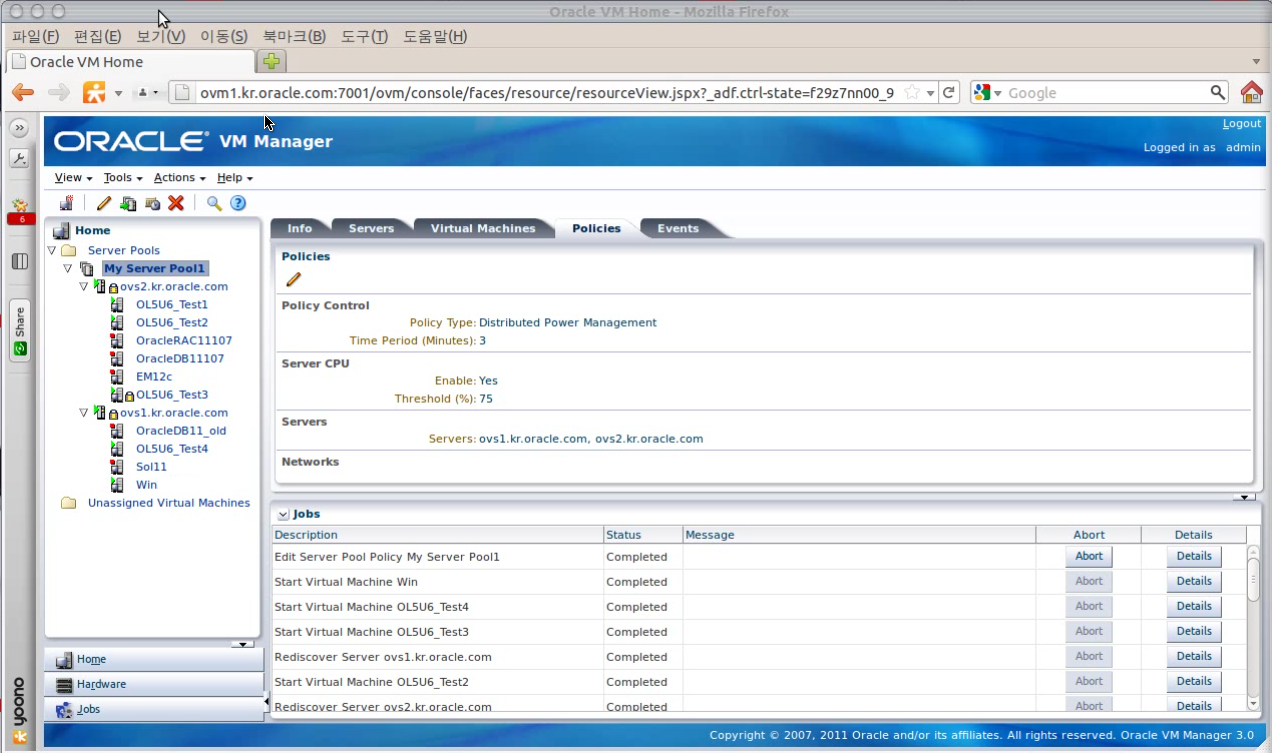
Figure: Oracle VM 3.0.3 Manager web console


UI had simple outline that main menu on the left and chose one of them, sub menus appeared on the right in 2.X. 
In 3.x, knowledge base is newly added on the right side. KB content is changed based on what administrator choose left and center menu.


During the demo, the speaker focused on describing that Oracle prepared a lot of s/w as virtual machine templates. Although these templates are not perfect for production, they are enough to use for developments with only simple configuration. Oracle has already provide various templates from Oracle web site.


2. Extend management capability for Oracle VM by Enterprise manager(EM) 12C. 

Figure: EM 12c Cloud Self Server Portal.

To manage VM by EM, it need to interact with OVM manager. It doesn't have to install EM for the only purpose of managing VM. But, If you want to monitor s/w and advanced functionality, it have to install EM agent on VM or physical machine.

By virtual Assembly builder, VM template can be parameterize. This means that define properties for the VM template and put values later when the vm creation via EM menu. Users can easily make various VMs derived the same template.

Cloud Metering

Figure: EM 12c Cloud Metering.
It can define plans about metering in EM 12c
It has two plan about metering functionality. 
- Universal charge plan: base scheme (cpu, memory and  storage)
- Extended charge plan: can add condition on base or range or ignore universial plan

Features of EM 12C

Figure: How to manage cloud via EM 12C

 Monitoring
- Manage physical and virtual machines simultaneously
- Monitor and manage Linux server
OVM 3.x environment management
- Resource monitoring of Linux and Virtual Machines
- Manage Oracle DB and other S/W
- Automatic database tuning
  
 Environment mgmt.
- Bare metal provisioning about Linux OS and OVM Server
- Provisioning about VM templates and assemblies
Provisioning about Oracle DB
- Automatic patch mgmt about Linux and Oracle products.
- Knowledge base about various faults and incidents


3. Licence 
License can be applied to based on target.  If the target of using these products (OVM and EM 12C) is virtualization management (Virtual Machine and physical machine mgmt, VM lifecycle mgmt etc..), It's free. However, You have to pay for the extended functionality above base virtual mgmt. for example, Metering.

2012년 4월 13일 금요일

XCP: Comparison between XCP and XenServer

Functionality comparison between XCP and XenServer is following. This content  comes from http://wiki.xen.org/wiki/XCP/XenServer_Feature_Matrix

FeaturesXen Cloud PlatformXenServer FreeXenServer AdvancedXenServer EnterpriseXenServer Platinum
Cost/LicensingFree/Open Source (Multiple Licenses)Free/Citrix EULAPaid/Citrix EULA
XenServer hypervisorXXXXX
IntelliCacheXXXXX
Resilient distributed management architectureXXXXX
VM disk snapshot and revertXXXXX
XenCenter managementXXXXX
Conversion toolsXXXXX
XenMotion® live MigrationXXXXX
Heterogeneous poolsXXXX
Dynamic Memory ControlXXXX
Performance alerting and reportingXXXX
Distributed virtual switching management toolXXX
High availabilityXXX
Automated VM protection and recoveryXX
Host power managementXXX
Live memory snapshot and revertXXX
Role-based administrationXXX
Dynamic workload balancingXX
Provisioning services (virtual)XX
StorageLinkXX
Web self-service with delegated adminXX
Site recoveryXX
Lab manager with self-service portalX
Provisioning services (physical)X

2012년 3월 26일 월요일

Openstack: 1. XCP install & configuration

To test openstack compute (Nova) with xen based machine, it needs XCP (Xen Cloud  Planform) or Xenserver. Openstack compute supports KVM, XenServer/XCP and ESXi hypervisor. I chose XCP because it needs no license. 


XCP is open source version of XenServer which has the same toolstack with XerServer. As a Cronos project, it is able to use XCP on Ubuntu 12.04 called Precise. (For Fedora and Centos users, they should wait until May. XCP team is porting xen on Fedora and CentOS, It will be finished by May)


I prepared the following servers for the test.
- 1 Virtual Machine: Openstack compute, installed Ubuntu.
- 1 Physical Machine : Openstack Controller, Ubuntu 12.04 beta (XCP 1.5 beta)


When creating virtual machine on XCP, it has to create a storage repository first. XCP uses SR (Storage Repository) to store virtual machine images, ISO files and templates. SR supports for IDE, SATA, SCSI and SAS drives locally connected, and iSCSI, NFS, SAS and Fibre Channel remotely connected.  


I have known storage repository concept since Oracle VM. I used NFS as a shared resository. NFS also can be used in XCP. However, I only have one physical machine this time. There are two physical hard disks on the server. One is for operating system and the other is for storage of XCP.     


Set the environment of XCP 
As a result of Cronos project, it is able to install xcp using agt-get command on Ubuntu 12.04.

1) Set up software repositories
$ sudo apt-get install python-software-properties
$ sudo add-apt-repository ppa:ubuntu-xen-org/xcp-unstable

2) Workaround xcp-networkd missing file
$ mkdir /etc/xcp
$ echo "bridge" >> /etc/xcp/network.conf

3) Install xapi: This step installs XCP's xapi and all its dependencies, including the Xen hypervisor.
$ apt-get pciutils
$ apt-get update
$ apt-get install xcp-xapi
$ apt-get install xcp-xe

4) Workaround VM's not going to power-state: halted after shutdown
$ vi /usr/lib/xcp/scripts/vif

remove)    =>   remove|offline)
    if [ "${TYPE}" = "vif" ] ;then
        call_hook_script $DOMID "${ACTION}"
        # Unclear whether this is necessary, since netback also does it:
        logger -t script-vif "${dev}: removing ${HOTPLUG_STATUS}"
        xenstore-rm "${HOTPLUG_STATUS}"

5) Workaround XAPI conflicts with XEND
$ sudo sed -i -e 's/xend_start$/#xend_start/' -e 's/xend_stop$/#xend_stop/' /etc/init.d/xend
$ sudo update-rc.d xendomains disable

6) Workaround qemu keymap location preventing vncterm from starting
$ sudo mkdir /usr/share/qemu
$ sudo ln -s /usr/share/qemu-linaro/keymaps /usr/share/qemu/keymaps

7) 
Make xen the default grub entry.
$ sed -i 's/GRUB_DEFAULT=.\+/GRUB_DEFAULT="Xen 4.1-amd64"/' /etc/default/grub
$ update-grub

Create local storage repository
If you want to create a VM before create a SR, you meet the following error: 
Error: No SR specified and Pool default SR is null


So, I make a partition to map storage repository 
$ pvcreate /dev/sda3
Physical volume "/dev/sda3" successfully created


$ pvdisplay
----- Physical volmue -------
 PV Name               /dev/sda2
 VG Name               VolGroup00
 PV Size                 11.72 GB / not usable 1.68 MB
 Allocatable            yes (but full)
 PE Size (KByte)      32768
 Total PE                375
 Free PE                 0
 Allocated PE          375
 PV UUID                AN--------------

----- Physical volmue -------
 PV Name               /dev/sda3
 VG Name               VolGroup00
 PV Size                 8.17 GB / not usable 17.80 MB
 Allocatable            yes (but full)
 PE Size (KByte)      32768
 Total PE                261
 Free PE                 261
 Allocated PE          0
 PV UUID                Tj--------------


$ xe sr-create type=lvm content-type=user device-config:device=/dev/disk/by-id/scsi-SATA_ST3320620AS_5QF7QZZL name-label=”local storage”
After run this command, an error was occurred.
The SR could not be connected because the driver was not recognised.
driver: lvm
Set EXT if you have an unused block device. I got an idea of how to solve from here


Tried again after changed type from lvm to ext 
$ xe sr-create type=ext content-type=user device-config:device=/dev/disk/by-id/scsi-SATA_ST3320620AS_5QF7QZZL name-label=”local storage”


# Create a vm
$ net_uuid=$(xe network-list bridge=xenbr0 --minimal)
$ vm=$(xe vm-install new-name-label="centos-test" template="CentOS 5 (64-bit)" sr-name-label="local stroage")

$ xe vif-create vm-uuid=$vm network-uuid=$net_uuid mac=random device=0
$ xe vm-param-set uuid=$vm other-config:install-repository=http://ftp.daum.net/centos/5/os/x86_64
$ xe vm-param-set uuid=$vm other-config:disable_pv_vnc=1
$ xe vm-start uuid=$vm


# Connecting to xenconsole
$ dom_id=$(xe vm-list uuid=$vm params=dom-id --minimal)
$ /usr/lib/xen-4.1/bin/xenconsole ${dom_id}


Type ctrl + ] if you want to close xencosole


References: 
1. XCP toolstack on a Debian: http://wiki.xen.org/wiki/XCP_toolstack_on_a_Debian-based_distribution 
2. Hypervisor support matrix: http://wiki.openstack.org/HypervisorSupportMatrix 
3. CentOS 6 VM (64 bit) automated installation on XCP: http://grantmcwilliams.com/item/563-centos6-on-xcp

2012년 3월 1일 목요일

Oracle VM: Dynamic Resource Management


I summarize that what elements exists for the dynamic resource management in Oracle VM 2.2.2 and manager 2.2
  • Control resources's quality that virtual machines are using.
  • Allocate and deallocate resources without restart the VM  

Network QoS management.
In Oracle VM, It is able to limit the bandwidth of VIF(Virtual Interface)

Rate LimitIn Oracle VM admin UI, you are able to limit bandwidth of VIF (Virtual Interface) to select the "Enable Rate Limit" and fill the value in the Rate Limit(Mbit) field. or example, 8 (This means you control that the network traffic through the virtual network interface cannot exceed 8 Mb/s. There is no need to restart.

When you ckeck vm.cfg, the change takes effect the following:
# outbound traffic
vif = ['bridge=xenbr0,mac=00:16:3E:2B:11:83,type=netfront,rate=8Mb/s@50ms']
# inbound traffic   
vif_other_config = [['00:16:3e:2b:11:83', 'tbf', 'rate=8mbit,latency=50ms']]             

Usage: vif_other_config = [[ 'mac', 'qos_algorithm_type', 'qos_algorithm_params']]
- mac: VIF의 MAC address
- qos_algorithm_type: QoS algorithm. Only support tbf. 
- qos_algorithm_params:  parameters of qos_algorithm_type, late limit and latency. for example, rate=8mbit,latency=50ms.


Virtual Network Configuring
  • If a Virtual Machine is HVM(Hardware Virtual Machine) type, It can add either Fully Virtualized or Paravirtualized for its VIF.
  • Paravirtualized driver, known as netfront driver, can be used either for HVM or PVM.
  • Fully virtualized driver, known as ioemu driver, can be used only for HVM.
* Both drivers has BISO and device emulation code to support Fully virtualization. 

* Fully Virtualized (ioemu) is default VIF for HVM and Paravirtualized (netfront) for PVM (It cannot be changed in the PVM)


* After you configure the virtual network interface type for one virtual network

interface, all the virtual network interfaces in the virtual machine will be set to the same type.


Disk OoS 
For the priority of storage IO, it can be set from 0 to 7. 0 has the highest priority and 7 has the lowest one.


Virtual disks of the same priority class take the same priority on the Oracle VM Server, even if they belong to different virtual machines. (

the priority of a virtual disk is global on the entire Oracle VM Server).

The change takes effect in the vm.cfg:
disk_other_config = [['xvda', 'ionice', 'sched=real-time,prio=2']]

Usage: disk_other_config = [[ 'front_end', 'qos_algorithm_type', 'qos_algorithm_params']]
- front_end: name of the virtual device. for example, hda, hdb, xvda, and so on.
- qos_algorithm_type:  name of the QoS algorithm, only supports ionice
- qos_algorithm_params:  Parameters of qos_algorithm_type, schedule class name and priority. for example, sched=real-time,prio=5.

* There are threes IO scheduling class (Idle, Best Effort, and Real Time ). Oracle VM only supports Real Time.

* The number of virtual disks which can be attached to a VM.
- HVM: Up to 4 for IDE type, Up to 7 for ISCSI type 
- PVM: no limit


CPU Priority

Select High (100), Intermediate (50), or Low (1) priority for the virtual CPUs. You can also enter a custom priority by selecting Customize and entering a value out of 100 in the text area. When VMs access to physical resource at the same time,  this guarantees priority of the VMs. Scheduling Cap means the the vCPU cannot exceed the percentage even if whole CPU is in idle.

Usage: xm sched-credit -d [-w[=WEIGHT]|-c[=CAP]]
Get/set credit scheduler parameters.
  -d DOMAIN, --domain=DOMAIN     Domain to modify                           
  -w WEIGHT, --weight=WEIGHT     Weight (int)                               
  -c CAP, --cap=CAP              Cap (int)   


* Adjust number number vCPU without restart: lower from boot value, increase back to boot value. The VM needs to restart when vCPU exceeds boot value. 


Memory
Adjust Memory without restart: lower from maximum value, increase back to maximum value. The VM needs to restart when its memory exceeds maximum value.